Sometimes, small toolkit might be handy for the day of administrator.
Powershell Script to Get CPU,Memory and C Drive utilization (Server Health Check)
This one too. 😊
Windows Server Health Checklist Power shell CPU,Uptime,Service status,Ram
Saturday, August 19, 2017
Wednesday, April 13, 2016
SCSM 2012 R2 SP1 | IIS HTML5 Self Service Portal
Download URL for UR8: https://www.microsoft.com/en-in/download/details.aspx?id=49556&tduid=(a0b998ad79720a578be2b853f6f1ee2c)(256380)(2459594)(TnL5HPStwNw-1YYdKvxQ92pE8quqVDR1ZA)()
Perform Management
Pack import:
On the Management Server that you wish to run the Self-Service Portal, perform the following:
Pre-requisites:
- Add the IIS role
- Enable HTTP Activation
3. Enable ASP.NET 4.5
4. Enable Basic Authentication and Windows Authentication (From role services on the Web Server Role (IIS) page)
5. Add
also .NET Extensibility 4.5, ASP, and ASP.NET
4.5 (From Application Development)
Tuesday, April 12, 2016
Installing UR9 issue on Data Warehouse Server | Error" Service ' ' () could not be stooped. Verify that you have sufficient privileges to stop system services
Product: SCSM 2012 R2 SP1
Hit the following error during the UR9 update in DW Server
Solution:
Solved by
remove the following registry key.
HKEY_LOCAL_MACHINE\SOFTWARE\Microsoft\Windows\CurrentVersion\Installer\UserData\S-1-5-18\Components\C136289094C3BF843A93EE1FF3BA42B5
Tuesday, September 1, 2015
Group Policy Setting (GPO) for IE 10 or above
Nowadays, most organization changing to Windows 7, 8 or above. Hence, the Internet Explorer version also starting to be IE 10 and above. To control the IE policy setting over the Group Policy (GPO), below is the good way.
But make sure you have the Windows Server 2012 or 2012 R2 Domain Controller to perform this. Otherwise, you are able to create the policy till IE 9 only.
In case there is no WS 2012 or above DC, just install the RSAT of Group Policy Management Console on any Window Server 2012 above machine, with the appropriate permission, still able to perform the same task as below.
1. Open the Group Policy Management Console and create a new GPO.
3. Under the Internet Settings -> New -> Internet Explorer 10
4. Go to Connection -> Local Area Network (LAN) settings as usual
5. Remember to Press F5 (or F6) to confirm the entry with “red dashed line” turning to “green dashed line” so that the settings will be applied.
6. Function keys:
F5 – Enable all settings on the current tab.
F6 – Enable the currently selected setting.
F7 – Disable the currently selected setting.
F8 – Disable all settings on the current tab.
7. Click OK then Apply this GPO to the test OU and run “gpupdate /force” in IE10/IE11 installed clients.
8. More details can refer to here --> http://blogs.technet.com/b/grouppolicy/archive/2008/10/13/red-green-gp-preferences-doesn-t-work-even-though-the-policy-applied-and-after-gpupdate-force.aspx
Tuesday, August 11, 2015
Supress Reboot After Windows Update via SCCM
If you faced the issue whereby your server still reboot even though you checked the checkbox to suppress the server reboot in SCCM.
To suppress the reboot, you will need to disable
the Configure Automatic Updates, so that SCCM can take over the restart
behavior. (This only apply to Windows 2012/R2& Windows 8/8.1 )
Saturday, April 26, 2014
Windows 8.1 Update
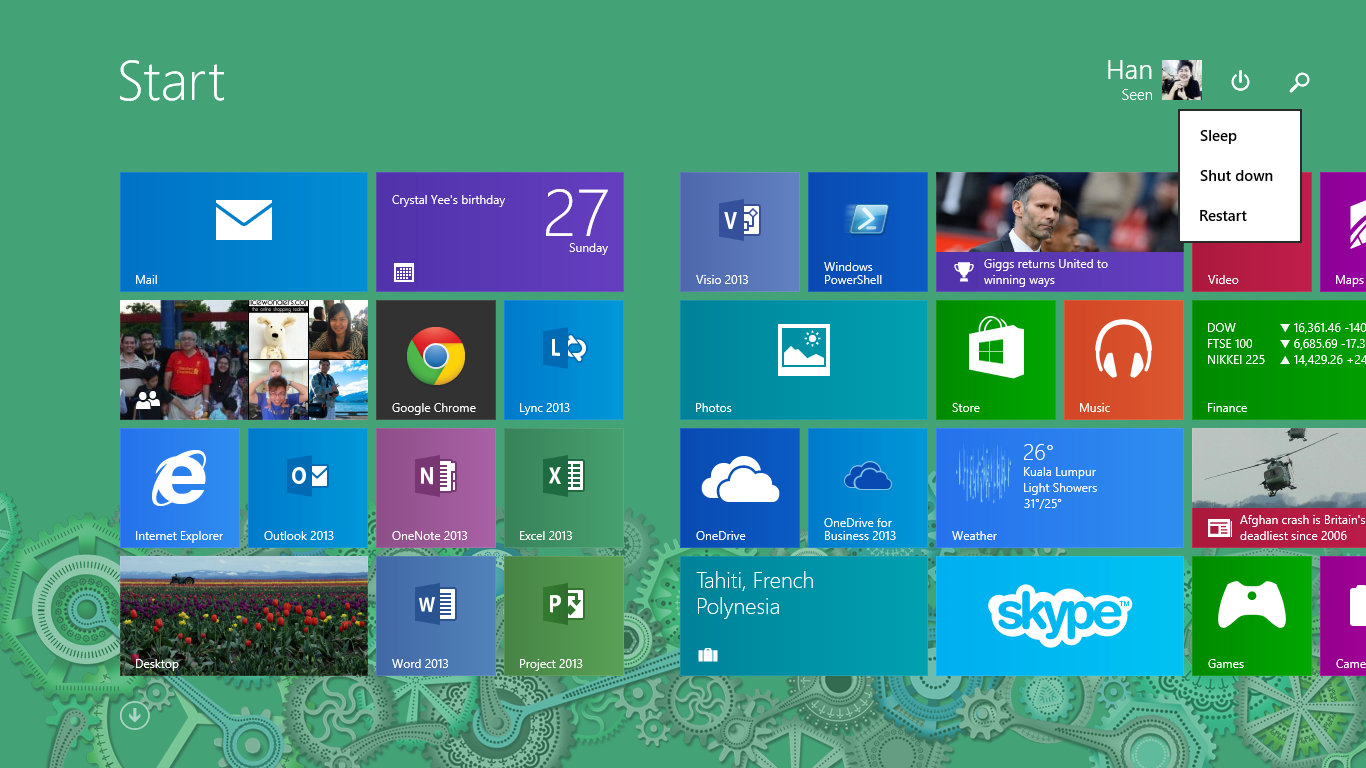
Just have a time to refresh my laptop, bought new SSD, and reinstall with Windows 8.1 again. Further than that, update to the latest 8.1 update (KB 2919355). Now, my start menu slightly changed; it has the power button beside my photo!

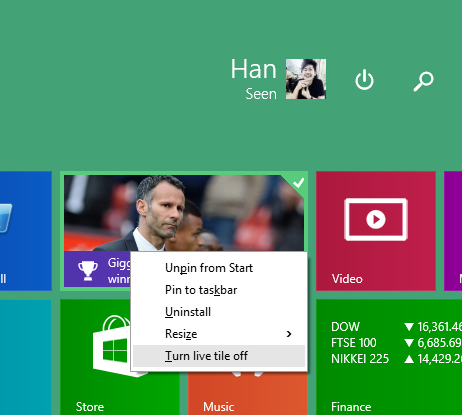
Besides, I got more options when right click on the Windows Tile.

I only notice the obvious two of these, for more, basically you can refer to this --> http://windows.microsoft.com/en-my/windows-8/whats-new

Besides, I got more options when right click on the Windows Tile.

I only notice the obvious two of these, for more, basically you can refer to this --> http://windows.microsoft.com/en-my/windows-8/whats-new
Wednesday, April 23, 2014
SCSM Upcoming fixes in the April UR2
Console fixes:
1. For users who have both SMTP and SIP
endpoints, Service Manager always picks up the Lync “sip” endpoint, even when
emailing users from the console.
2. After selecting Service Requests with
Service Level Warning, an error message stating a “FullAdapter” exception
occurs about one hour later.
3. After selecting the Assigned to me view,
an error message stating a “FullAdapter” exception occurs about one hour later.
4. Service Manager console maximized window
fixes:
a. When maximized, the console is slow or
unresponsive and has up to 30% CPU utilization.
b. Context menus in the console don’t
render where expected — instead, they appear at the top-right corner of the
window.
c. Work item scroll bars in the preview
pane do not render properly when running in full screen mode. When they do
appear, they are inactive and cannot be used.
d. Forms and wizards don’t always render
properly and only the left navigation pane renders with the right area blank.
e. When editing or creating request
offerings, user prompts do not render properly.
5. Concurrent PowerShell workflows fail to
run, although they show as successful in the console.
6. An error appears in the console when you
try to open an attachment in a work item form that was already opened.
7. The attachment and its associated details of
the release record cannot be retrieved after it is marked as Closed.
8. The request offering form takes a long
time to render when you create service requests from request offerings.
9. Console crashes when attempting to use
an SR Template with an assigned analyst..
10. Creating a service request can cause a
NullReferenceException error and crashes the console.
11. SM console shows a generic SQL exception
instead of the detailed Data Collision exception when running in a non-English
environment.
Platform fixes:
1. When grooming of the Database the
p_DataPurging stored procedure does not complete and SQL registers an error
with event ID 8623 stating that the query processor ran out of internal
resources and could not produce a query plan
2. Adding multiple RegEx's to a group
definition causes a SQL error when you add or execute the group.
3. The Configuration Manager connector does
not handle updates to DeviceHasSoftwareItemInstalled correctly. This causes a
divergence in the data that is synchronized between the Service Manager and
Configuration Manager databases.
4. MPImporter does not import management
packs from Operations Manager if Service Manager has any management packs from
a previous version already present.
Wednesday, April 2, 2014
Group Policy fine tuning (IE10 & IE11)
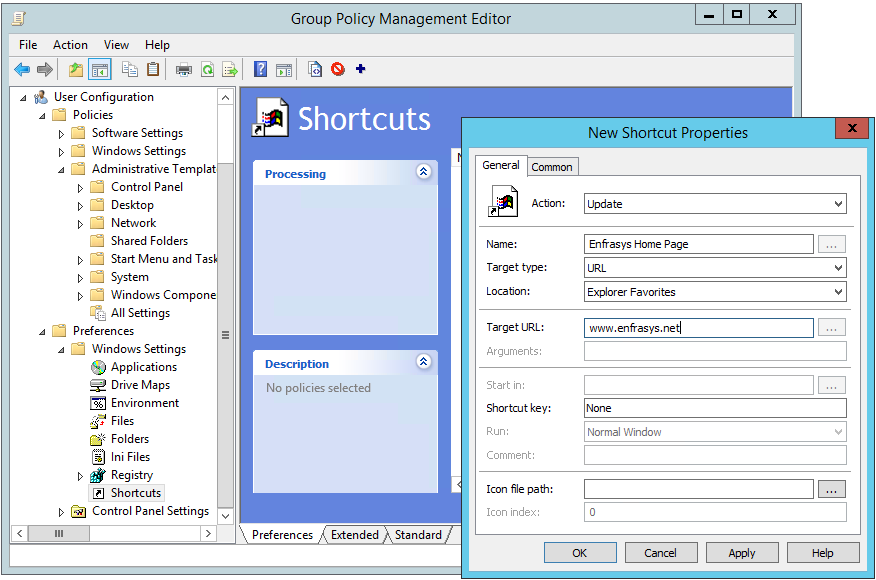
Since nowadays more and more Windows 8 or 8.1 are deployed into organizations, while the group policy setting is different from previous which is no longer with Internet Explorer Maintenance. However, few common settings like Homepage URL or favorites URL can be achieve via the Group Policy Preference Setting.
Set Home Page:-
After putting home page address,
press “F6” to apply the change. You will notice the red dot line go
green in colour.
User configuration >
Preferences > Control Panel Settings > Internet Settings > New > IE
10
Set Favour URL:-
User configuration > Preferences > Windows Settings > Shortcuts

Add more shortcuts will have more Favorites link
Wednesday, March 19, 2014
Managing / troubleshooting Windows Cluster with command (PowerShell Command)
During old days with Windows Server 2003, troubleshooting with Windows Cluster more are with the command line and script of cluster.exe.
Nowadays with the enhancement towards Windows 2008 or Windows 2012, the troubleshooting of Windows Cluster more rely on user interface.
However, if come across the cluster failover manager UI couldn't solve the problem, then you still can consider back to command line follow the following link. Also, the diagram below will give you the idea of the PowerShell command of cluster.exe.
http://technet.microsoft.com/en-us/library/cc739895(v=ws.10).aspx
Reference URL of the diagram: http://blogs.technet.com/b/josebda/archive/2010/09/25/mapping-cluster-exe-commands-to-windows-powershell-cmdlets-for-failover-clusters-extended-edition.aspx
Nowadays with the enhancement towards Windows 2008 or Windows 2012, the troubleshooting of Windows Cluster more rely on user interface.
However, if come across the cluster failover manager UI couldn't solve the problem, then you still can consider back to command line follow the following link. Also, the diagram below will give you the idea of the PowerShell command of cluster.exe.
http://technet.microsoft.com/en-us/library/cc739895(v=ws.10).aspx
Reference URL of the diagram: http://blogs.technet.com/b/josebda/archive/2010/09/25/mapping-cluster-exe-commands-to-windows-powershell-cmdlets-for-failover-clusters-extended-edition.aspx
Friday, February 21, 2014
Service Manager | Incident Resolution Satisfaction Survey
After resolved a ticket, usually we might want to send a survey to user so that they can feedback how's the IT support handle the case. In this case, the survey is important for the evaluation.
In Service Manager 2012, you may configure the survey easily follow the article from Travis Wright.
http://blogs.technet.com/b/servicemanager/archive/2009/12/08/incident-resolution-satisfaction-surveys-on-sharepoint.aspx
In Service Manager 2012, you may configure the survey easily follow the article from Travis Wright.
http://blogs.technet.com/b/servicemanager/archive/2009/12/08/incident-resolution-satisfaction-surveys-on-sharepoint.aspx
Tuesday, January 7, 2014
SCCM | Update speed of the report on application being installed and uninstalled
Sometimes, wonder how fast is the update
speed of the SCCM report being updated if a application is installed into the machine.
Hence, did a test on it.
Deploying:
The report showing the 7-zip is installed.
Now, we do the un-installation of the 7-zip
It is removed.
And the report updated correctly after 20 minutes even after setting the interval to 1 minute
Good thing is the report updated and it works perfectly.
Tuesday, July 16, 2013
Managed Default Folder and Configure Retention in Exchange 2010
Sometimes, being an Exchange Administrator, you might received the request or complaints from your users telling that their Junk or RSS Feeds or even Sync Issues folder in their Outlook is occupying a lot of space. And therefore, user will continue asking is there anyway to control it.
To configure this, there will be differences between Exchange 2007 and Exchange 2010 whereby Exchange 2007 is allow to configure via Exchange Management Console (EMC) or Exchange PowerShell while Exchange 2010 is only allow via Exchange PowerShell only. And therefore, it's time to start brushing the skill over in PowerShell. :(
In Exchange 2007, from the EMC,
1. Create the Managed Content Setting.
4. Bind / associate the default folder for with the policy. In my example, I associated both Junk Email and RSS Feeds folders
1. To create the managed content setting for the default managed folder. In this example, I create a new managed content setting named “SyncIssuesFolder-Retention1Day”
-> New-ManagedContentSettings -FolderName 'Sync Issues' -MessageClass SyncIssues -Name SyncIssuesFolder-Retention1Day -RetentionEnabled $true -RetentionAction DeleteAndAllowRecovery -AgeLimitForRetention "1"
2. To create the managed folder mailbox policy. In this example, I create a new policy named “SyncIssuesFolder-Retention1Day-Policy”
-> New-ManagedFolderMailboxPolicy -Name "SyncIssuesFolder-Retention1Day-Policy" -ManagedFolderLinks 'Sync Issues'
3. Apply the managed folder mailbox policy to the users. In this case, I apply to user called “exchadmin”
-> Set-Mailbox -Identity exchadmin -ManagedFolderMailboxPolicy "SyncIssuesFolder-Retention1Day-Policy"
4. Done.
One thing to take note on the licensing part which is managed custom folders are a premium feature of MRM, and each mailbox that has managed custom folders requires an Exchange Server Enterprise CAL. More information about licensing can be found at http://technet.microsoft.com/en-us/library/bb310756(v=exchg.80).aspx.
Thanks and hope the above steps will helps some administrators that looking at this area.
To configure this, there will be differences between Exchange 2007 and Exchange 2010 whereby Exchange 2007 is allow to configure via Exchange Management Console (EMC) or Exchange PowerShell while Exchange 2010 is only allow via Exchange PowerShell only. And therefore, it's time to start brushing the skill over in PowerShell. :(
In Exchange 2007, from the EMC,
1. Create the Managed Content Setting.
2. Configure the Retention and Action as you wish. Below are the examples for RSS Feeds folder and Junk Email folder. Both have been configured with 1 day retention and proceed for deletion but allow recovery after the retention.
3. Create the Managed Folder Mailbox Policy after configured the content settings.
5. Last, to assign the policy to users, just need to launch the properties page of the users from EMC -> Recipients Configuration -> Mailbox -> Choose your user -> Properties -> Mailbox Settings -> Messaging Records Management.
6. Tick the column "Managed folder mailbox policy" and browse to the policy configured on step 3.
7. Done.
For Exchange 2010, basically perform the same steps but is via Exchange PowerShell.
-> New-ManagedContentSettings -FolderName 'Sync Issues' -MessageClass SyncIssues -Name SyncIssuesFolder-Retention1Day -RetentionEnabled $true -RetentionAction DeleteAndAllowRecovery -AgeLimitForRetention "1"
2. To create the managed folder mailbox policy. In this example, I create a new policy named “SyncIssuesFolder-Retention1Day-Policy”
-> New-ManagedFolderMailboxPolicy -Name "SyncIssuesFolder-Retention1Day-Policy" -ManagedFolderLinks 'Sync Issues'
3. Apply the managed folder mailbox policy to the users. In this case, I apply to user called “exchadmin”
-> Set-Mailbox -Identity exchadmin -ManagedFolderMailboxPolicy "SyncIssuesFolder-Retention1Day-Policy"
One thing to take note on the licensing part which is managed custom folders are a premium feature of MRM, and each mailbox that has managed custom folders requires an Exchange Server Enterprise CAL. More information about licensing can be found at http://technet.microsoft.com/en-us/library/bb310756(v=exchg.80).aspx.
Thanks and hope the above steps will helps some administrators that looking at this area.
Subscribe to:
Posts (Atom)
Handy small toolkit
Sometimes, small toolkit might be handy for the day of administrator. Powershell Script to Get CPU,Memory and C Drive utilization (Server...
-
Wonder why the Free Disk Space has no data displayed in the Asset Intelligence - Hardware 01A report? After some digging, found out it was...
-
SCCM 2012 is going to RTM soon, however, some organization just starting to use the SCCM 2007 as their management tool to take care of th...
-
Sometimes, small toolkit might be handy for the day of administrator. Powershell Script to Get CPU,Memory and C Drive utilization (Server...